 Stadium Wallet GitOps
Deploy with ACM and GitOps
This section describes the deployment of Stadium Wallet using Red Hat Advanced Cluster Management (ACM) and OpenShift GitOps (Argo CD). The hub cluster runs ACM and Argo CD; managed clusters (east and west) receive applications via Placements and the ApplicationSet.
Overview
- Hub: OpenShift with ACM and OpenShift GitOps. ApplicationSet and Placements live in the
openshift-gitopsnamespace. - Managed clusters: Labeled with
region=eastorregion=west, in theglobalcluster set. GitOpsCluster creates cluster secrets so Argo CD can deploy to them. - Result: Six Applications (dev/test/prod × east/west) are created and synced from this repository.
For prerequisites and step-by-step commands, see Getting started and ARGO-ACM-DEPLOY.
ACM console views
The following screenshots show the ACM topology and Applications once the deployment is in place.
Topology and cluster status
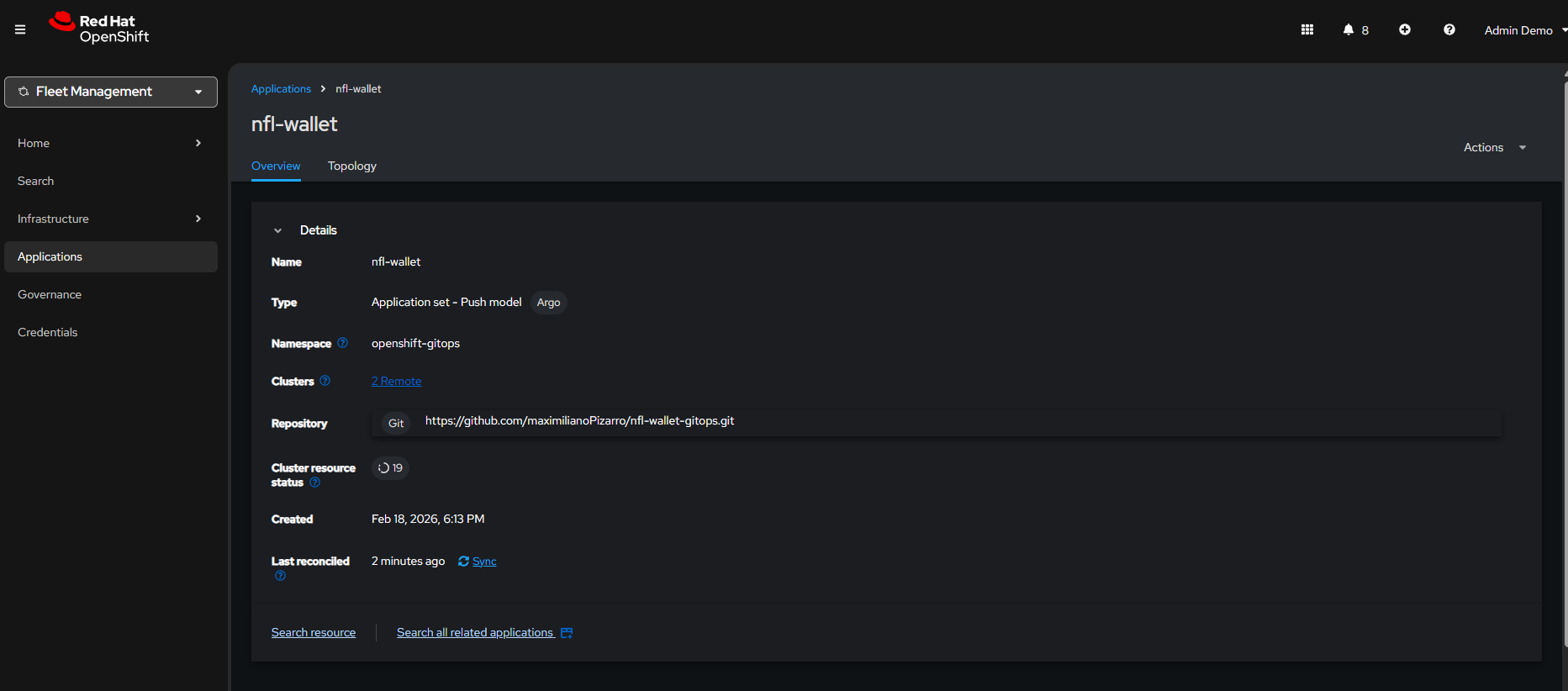
Figure 1: ACM topology view — hub and managed clusters (east, west). Green indicates clusters available and applications in sync; yellow can indicate OutOfSync or Progressing.
Applications and GitOps
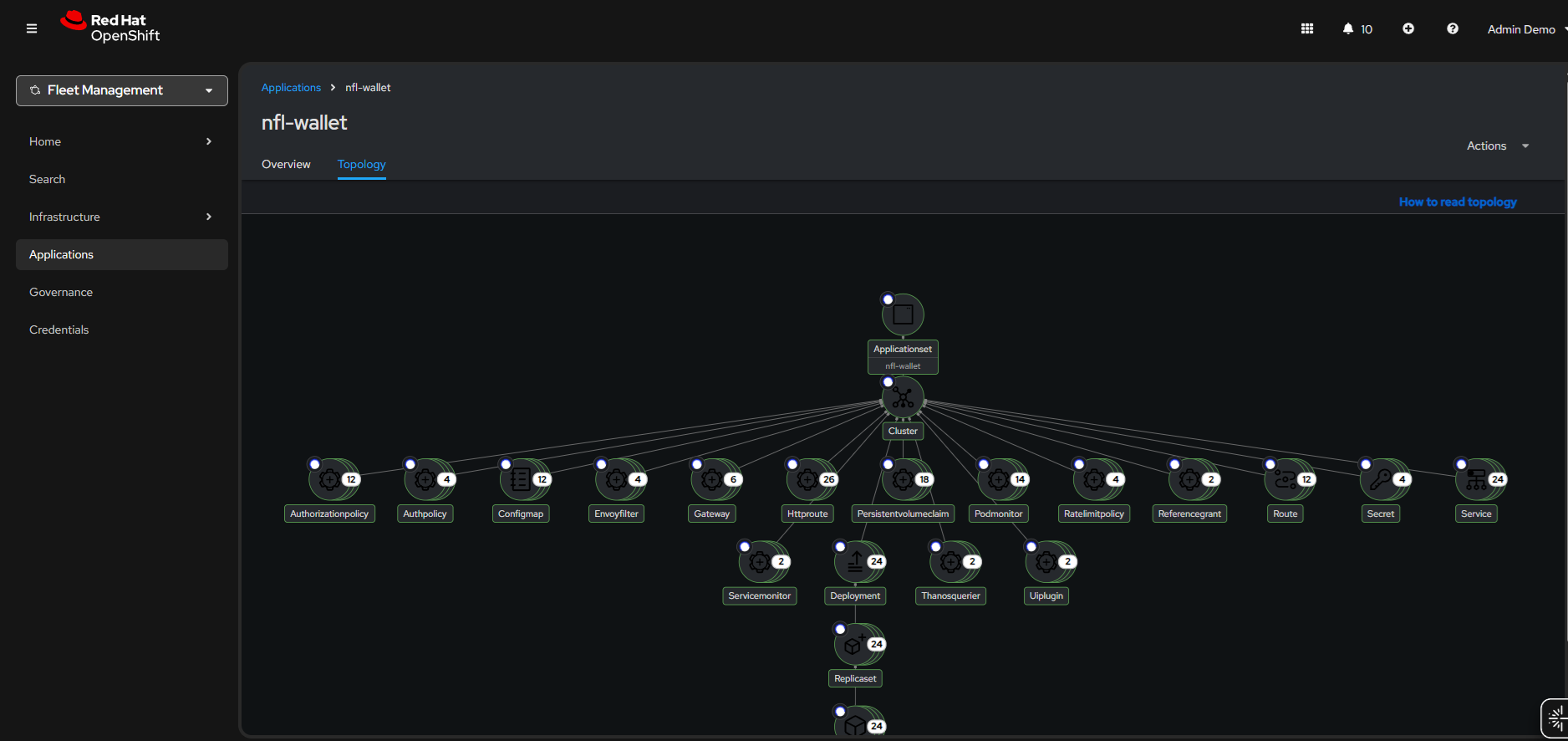
Figure 2: ACM Applications view — Stadium Wallet ApplicationSet and the six generated Applications (dev/test/prod on east and west).
OpenShift GitOps (Argo CD)
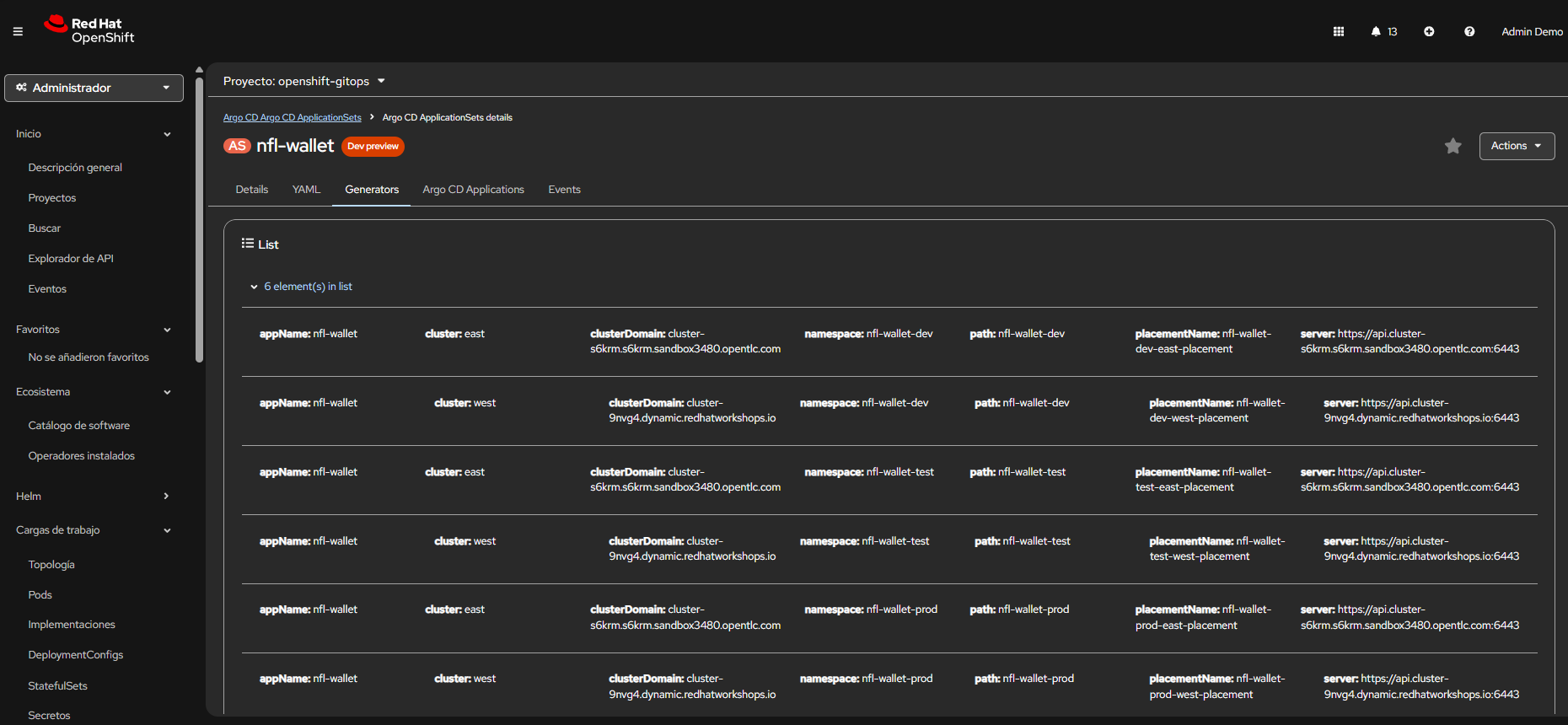
Figure 3: OpenShift GitOps — Argo CD Applications and sync status.
Quick reference
| Resource | Purpose |
|---|---|
argocd-placement-configmap.yaml |
ConfigMap for clusterDecisionResource (optional) |
argocd-applicationset-rbac-placement.yaml |
RBAC for ApplicationSet to read PlacementDecisions |
app-nfl-wallet-acm.yaml |
ManagedClusterSetBinding, Placement, GitOpsCluster |
app-nfl-wallet-acm-cluster-decision.yaml |
ApplicationSet (list generator, default) |
Application order:
kubectl apply -f argocd-applicationset-rbac-placement.yaml
kubectl apply -f app-nfl-wallet-acm.yaml -n openshift-gitops
kubectl apply -f app-nfl-wallet-acm-cluster-decision.yaml -n openshift-gitops
To refresh applications after changing the ApplicationSet: sync from the Argo CD UI or run ./scripts/force-sync-apps.sh.