Showroom Docs MCP Server
Quarkus MCP Server that indexes Red Hat product documentation and the "IA Development From Zero To Hero" workshop for OpenShift Lightspeed.
Project maintained by maximilianoPizarro Hosted on GitHub Pages — Theme by mattgraham
Screenshots

English | Espanol
OpenShift Topology
Deployment with Helm Release Notes
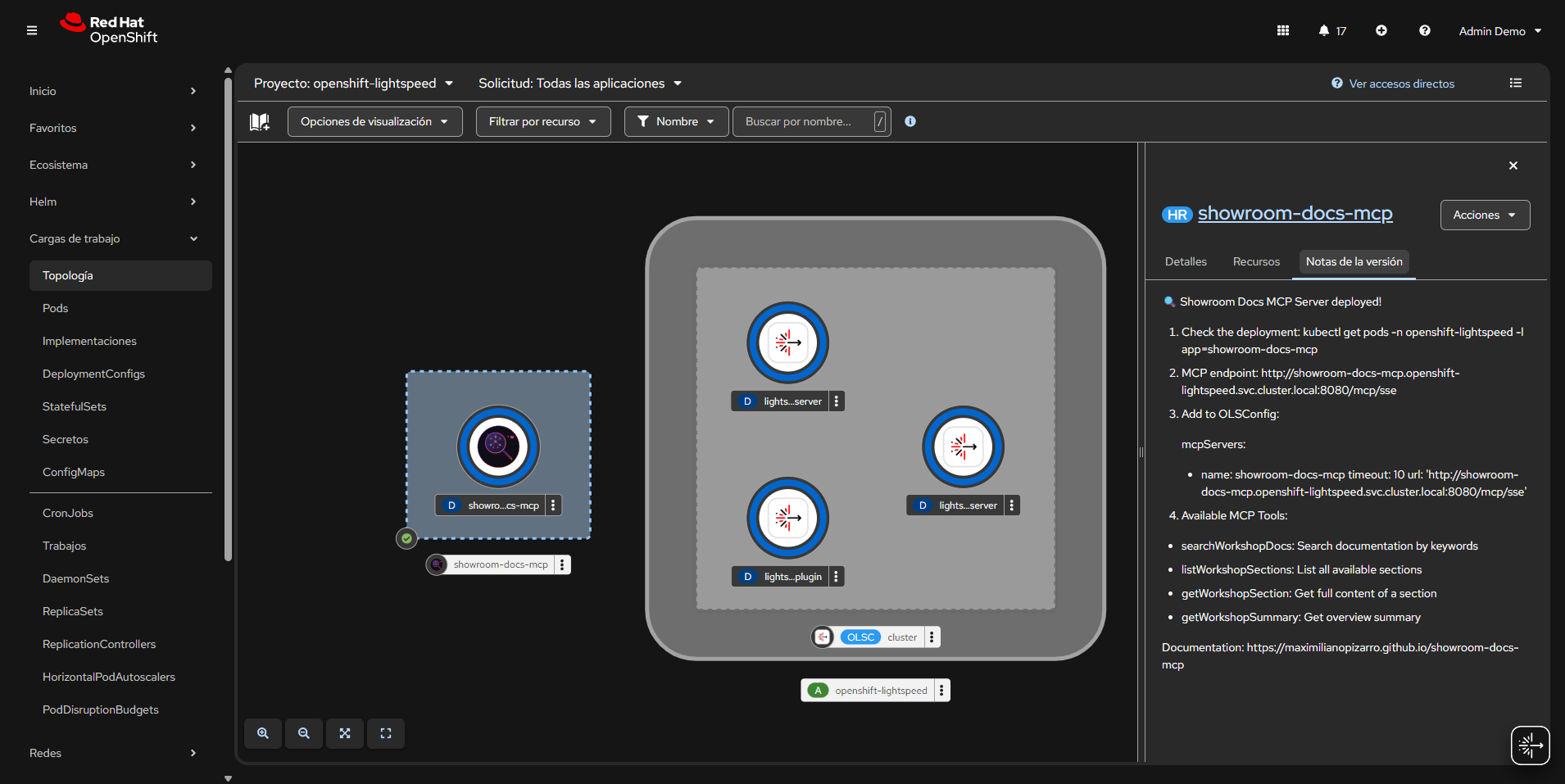
The OpenShift Topology view shows the Showroom Docs MCP Server deployed alongside OpenShift Lightspeed components in the openshift-lightspeed namespace. The Helm release notes panel displays post-install instructions including the MCP endpoint URL and available tools.
Lightspeed Chat from Topology View
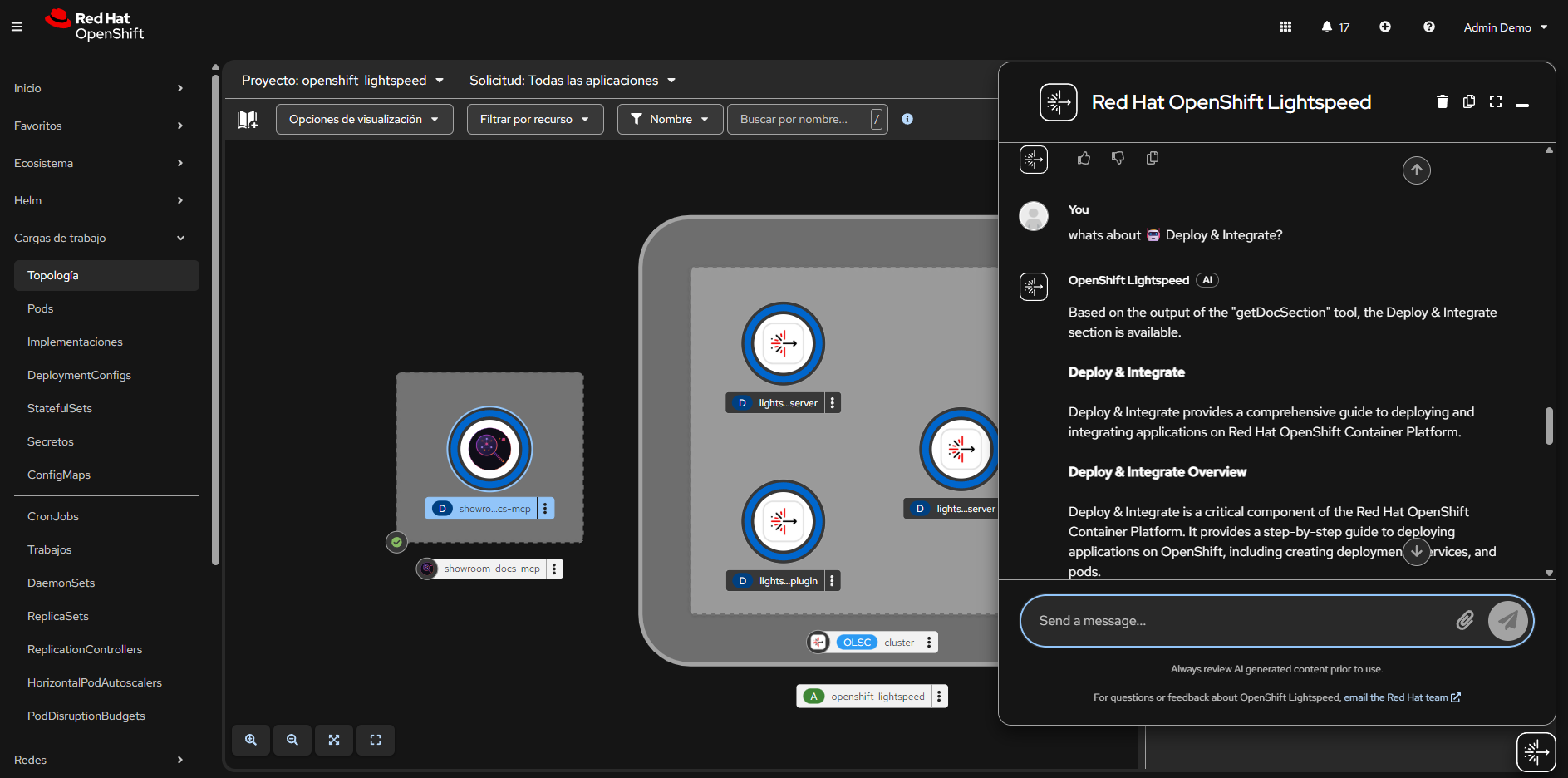
OpenShift Lightspeed chat integrated in the console, answering a question about “Deploy & Integrate” using the getDocSection MCP tool. The response is generated from the indexed workshop documentation.
OpenShift Lightspeed - MCP Tool Outputs
getDocSummary
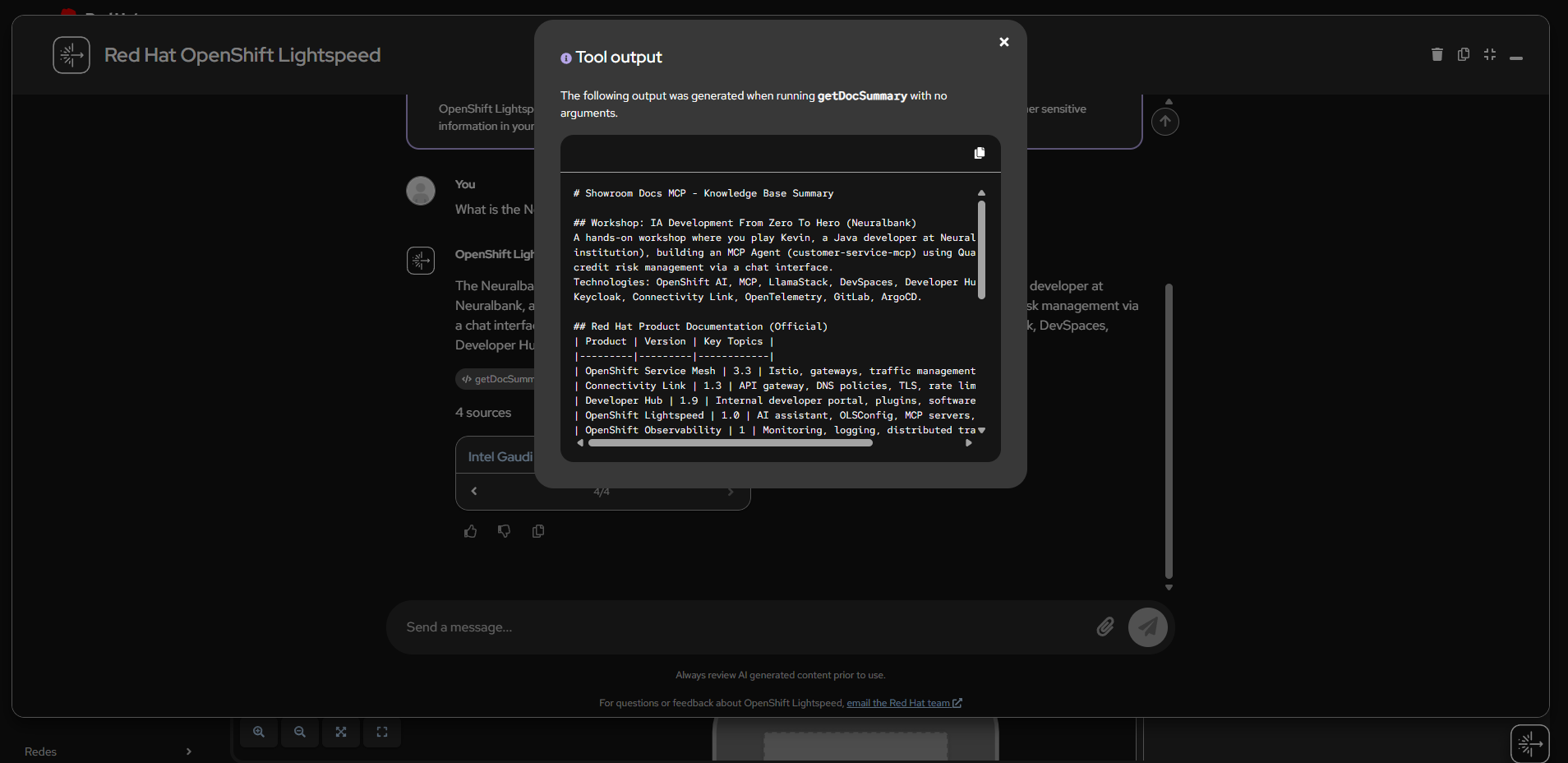
The getDocSummary tool returns a complete summary of the knowledge base, listing all indexed workshop modules and Red Hat product documentation with versions and key topics.
listDocSections
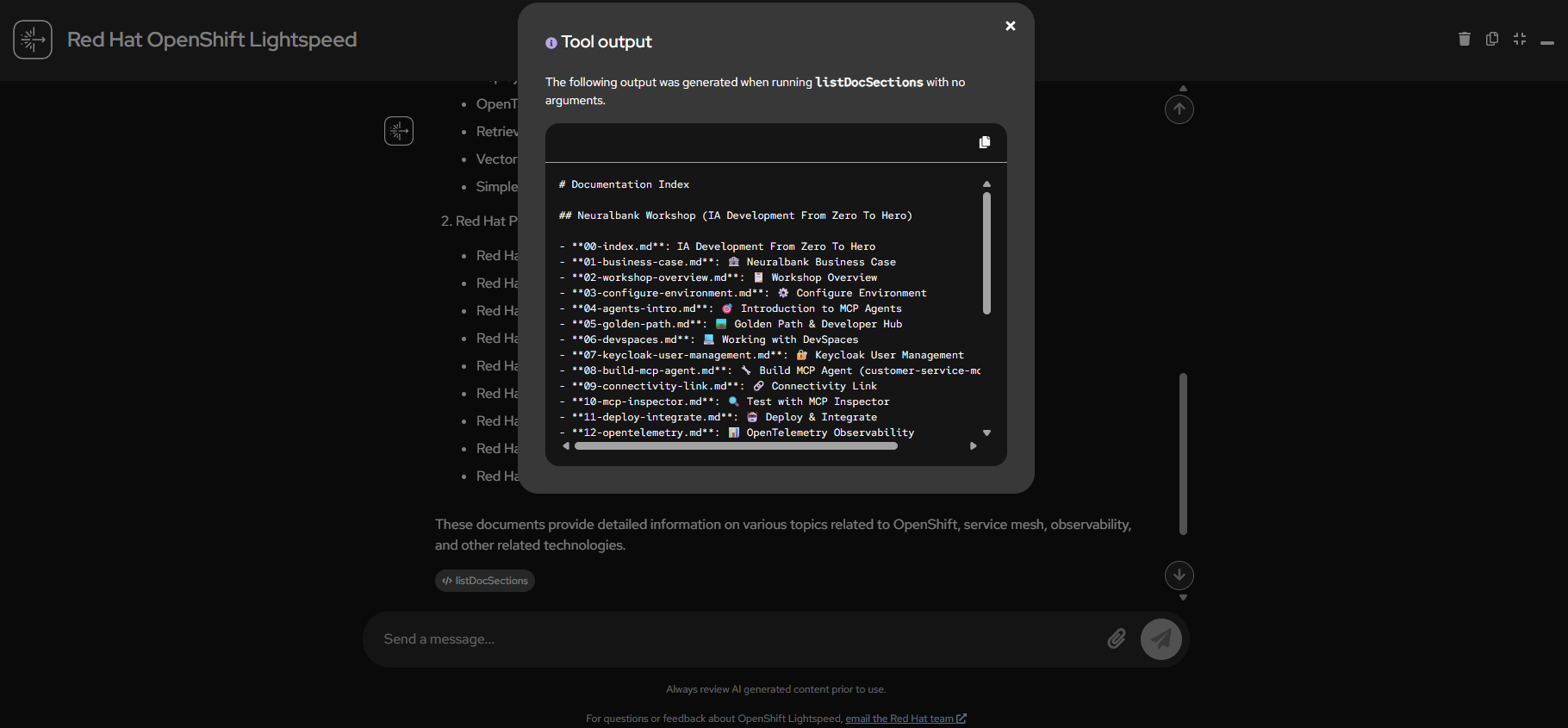
The listDocSections tool output shows the full documentation index with 46 files organized by workshop modules and Red Hat products.
listDocSections - Lightspeed Response
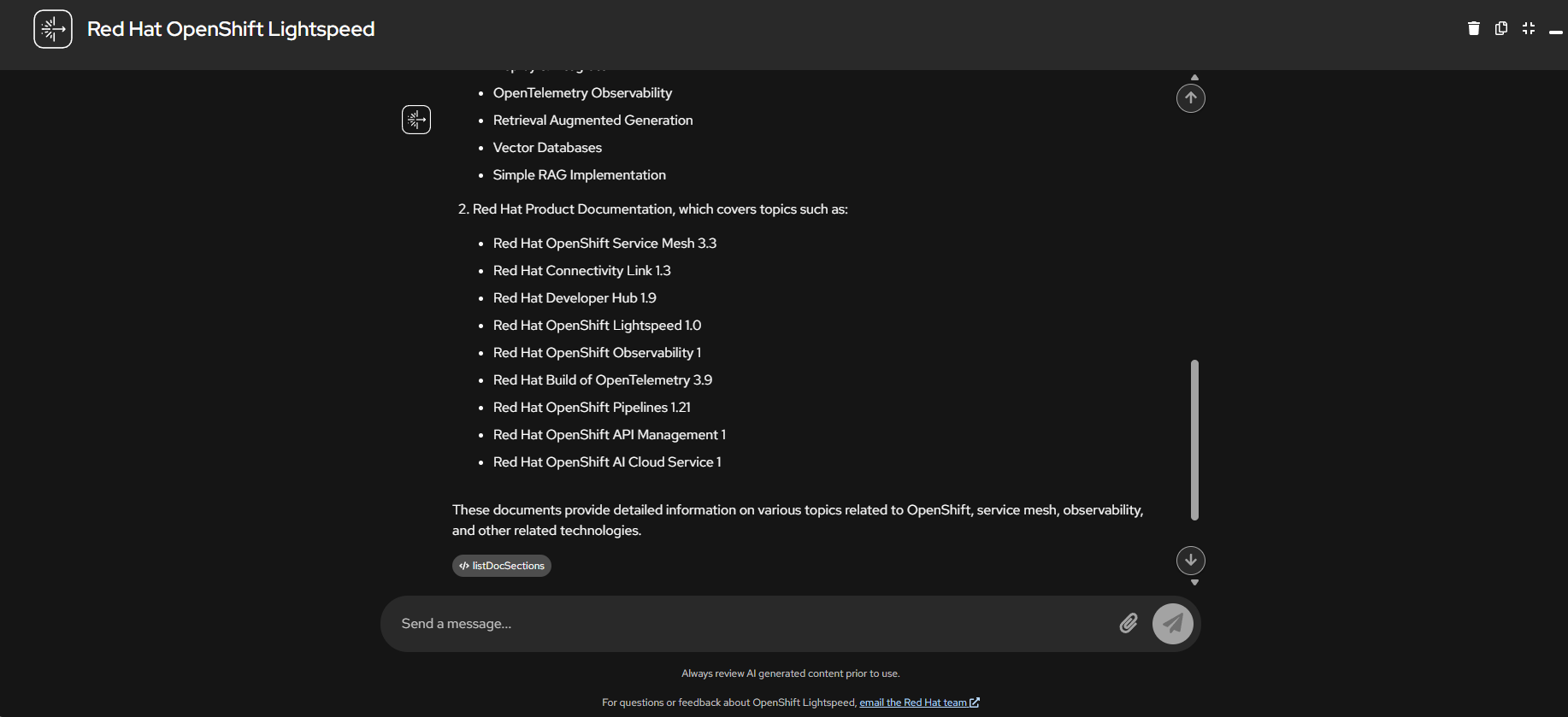
Lightspeed processes the listDocSections output and presents a formatted list of all available Red Hat product documentation with version numbers.
searchDocs - Connectivity Link
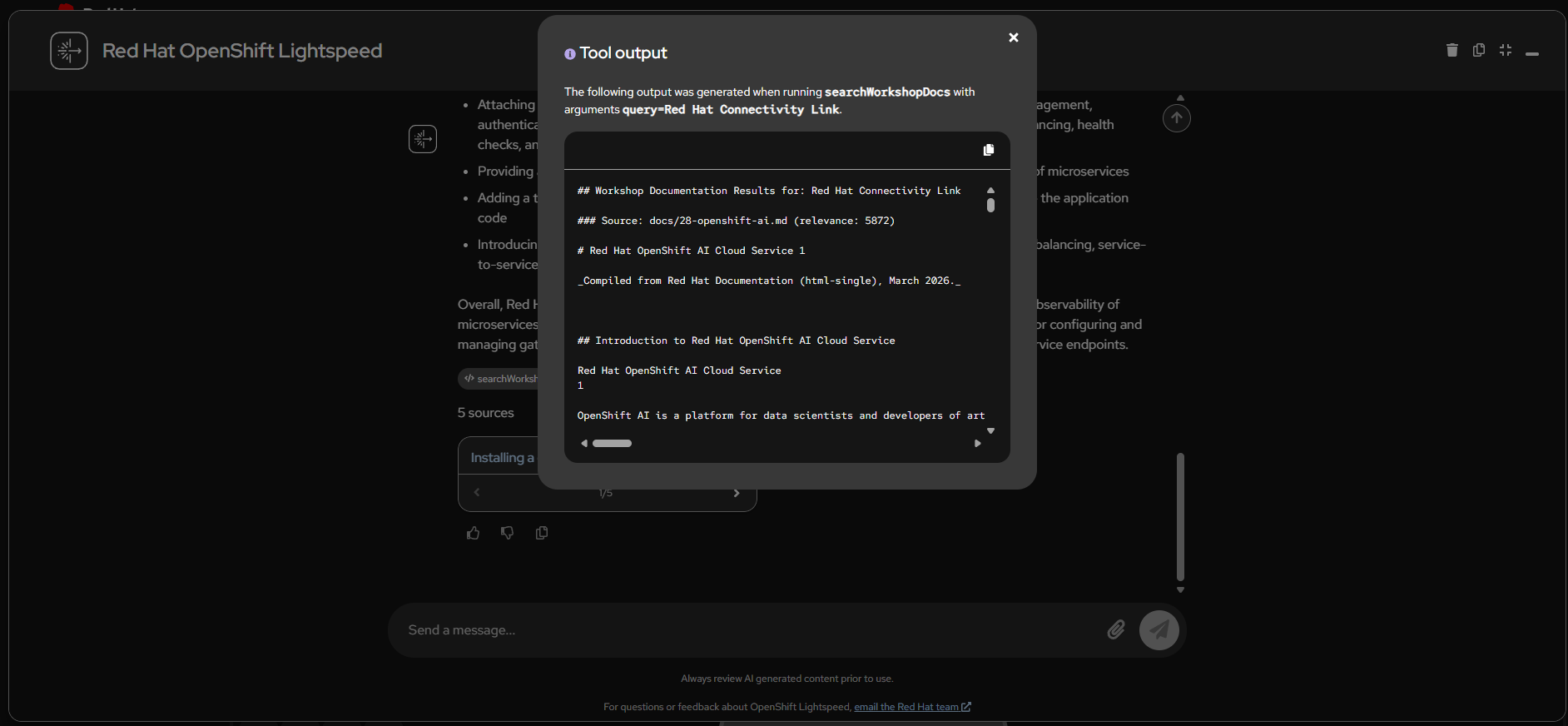
The searchDocs tool searching for “Red Hat Connectivity Link” returns relevant documentation from the indexed knowledge base with relevance scores.
searchDocs - NeuralBank MCP Agent
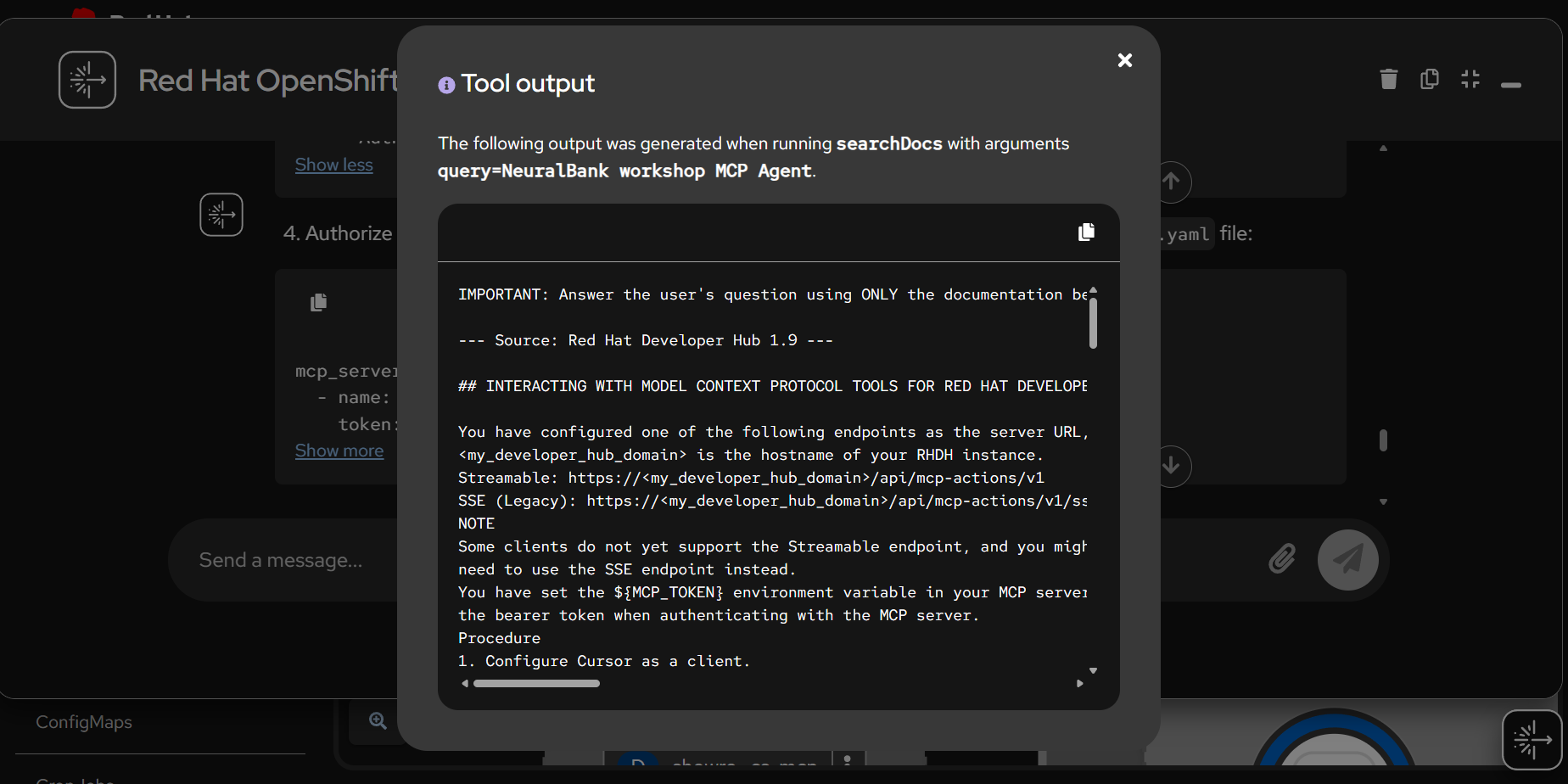
Search results for “NeuralBank workshop MCP Agent” showing how the tool finds Developer Hub documentation with MCP server configuration details.
getDocSection - OpenTelemetry Observability
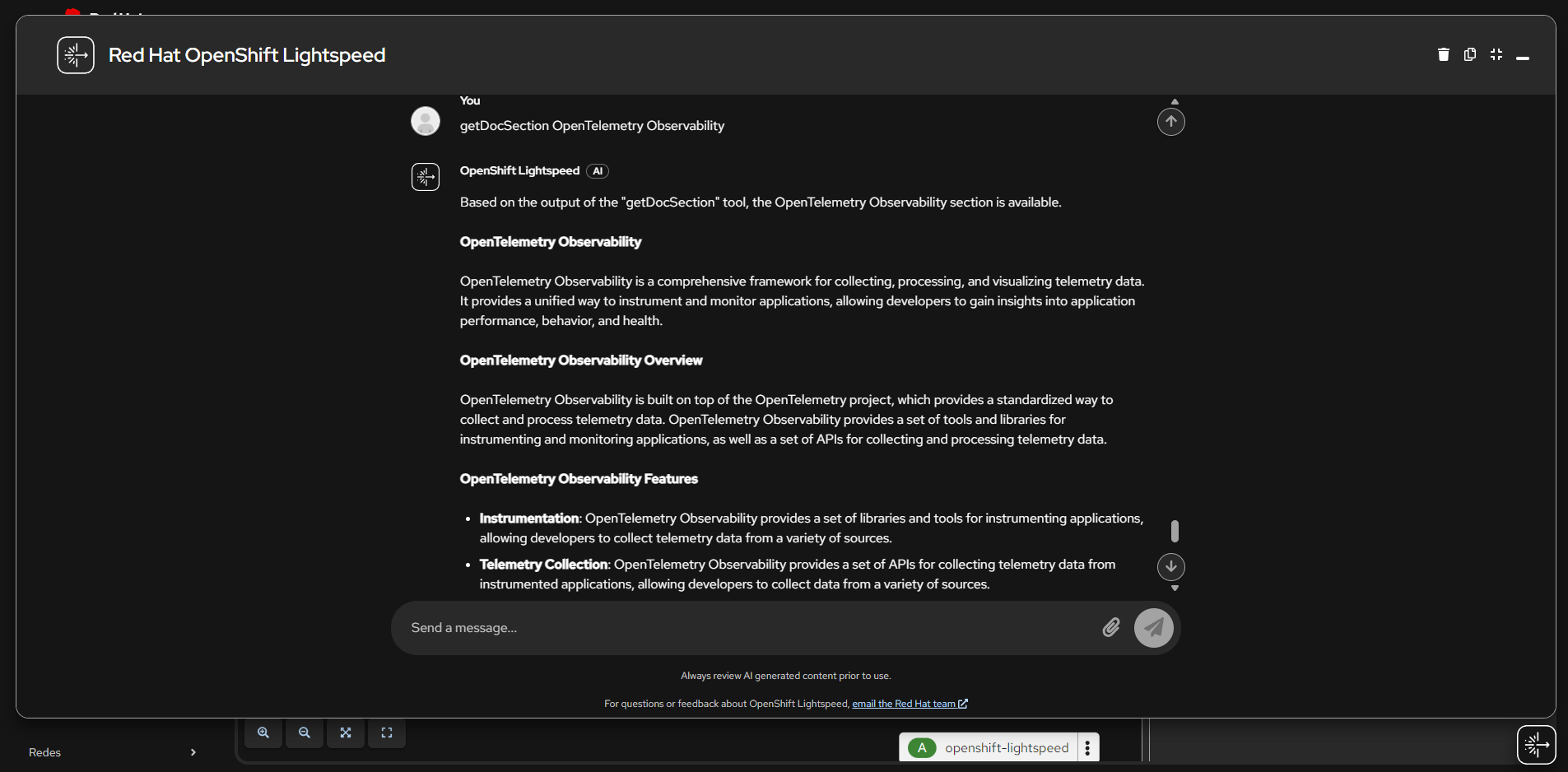
Lightspeed uses the getDocSection tool to retrieve and present detailed information about OpenTelemetry Observability, including features for instrumentation and telemetry collection.
NeuralBank Workshop MCP Agent
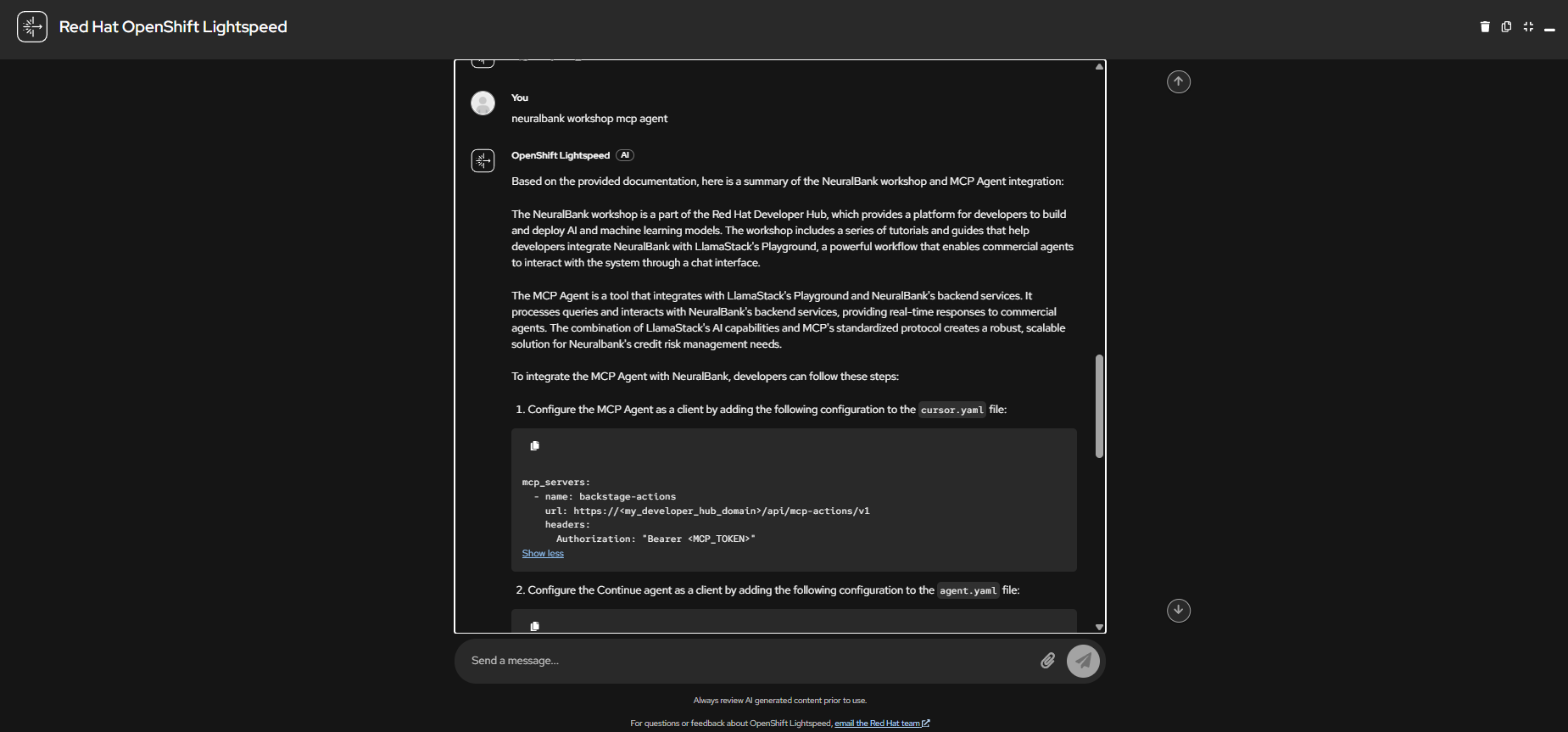
A conversation with Lightspeed about the NeuralBank workshop MCP Agent integration, showing how it explains LlamaStack Playground and backend services integration with step-by-step configuration.
MCP Inspector
The MCP Inspector is included as an optional deployment for testing and debugging the MCP server directly, without requiring OpenShift Lightspeed.
Connecting to the MCP Server
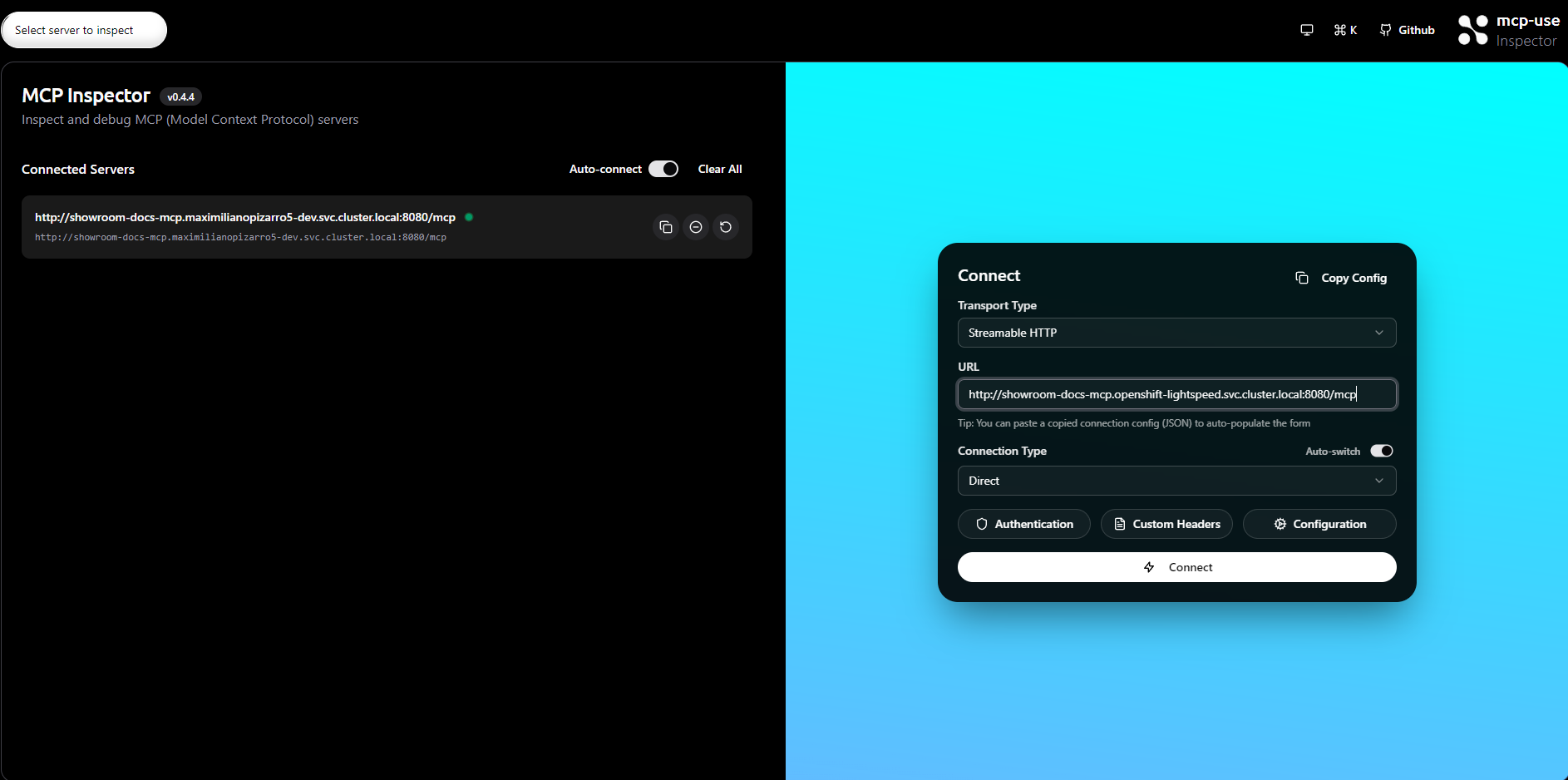
The Inspector connection dialog configured with Streamable HTTP transport type pointing to the internal MCP server service URL.
Available Tools
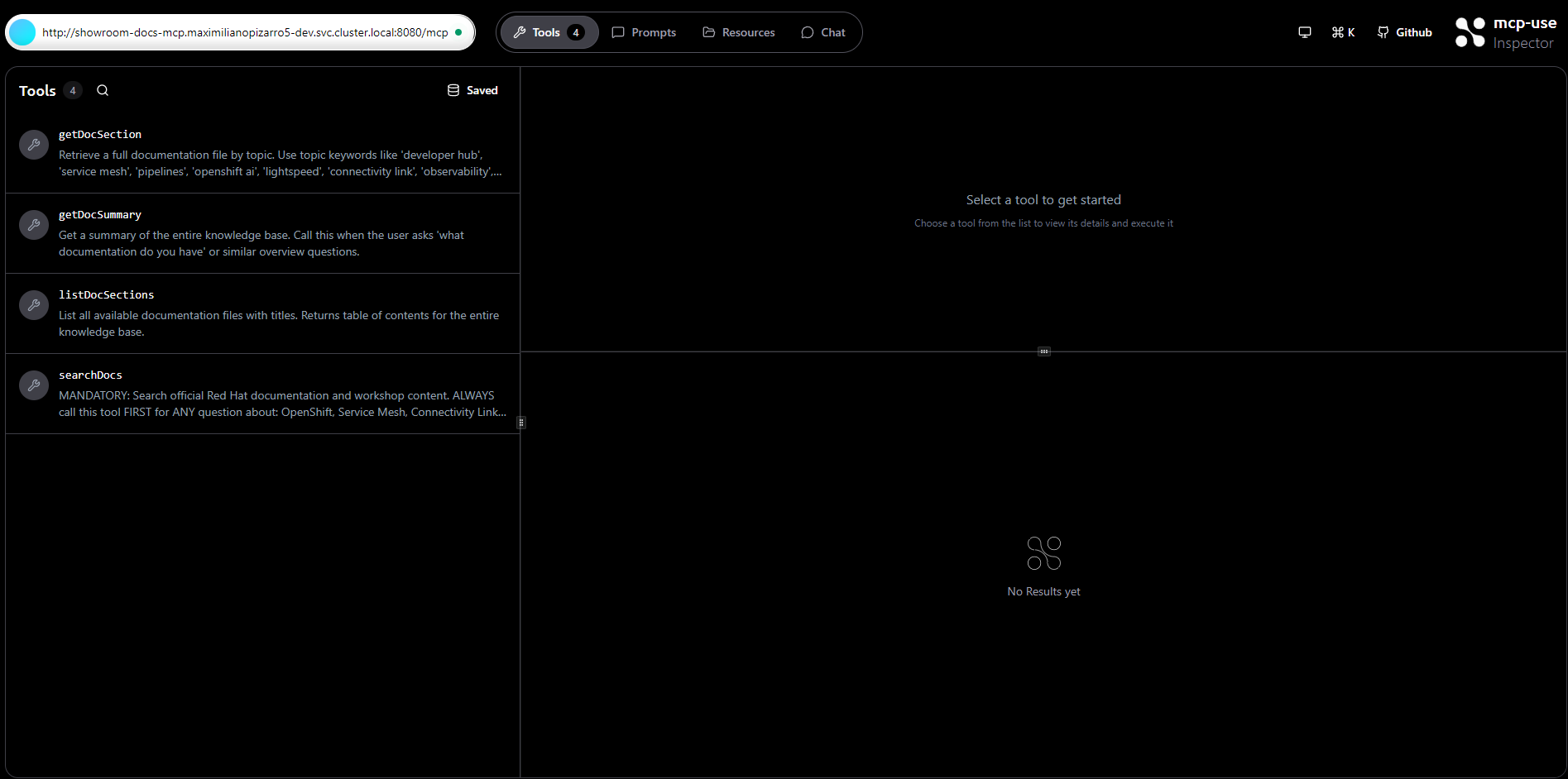
Once connected, the Inspector shows all 4 MCP tools with their descriptions: getDocSection, getDocSummary, listDocSections, and searchDocs.
Executing a Tool
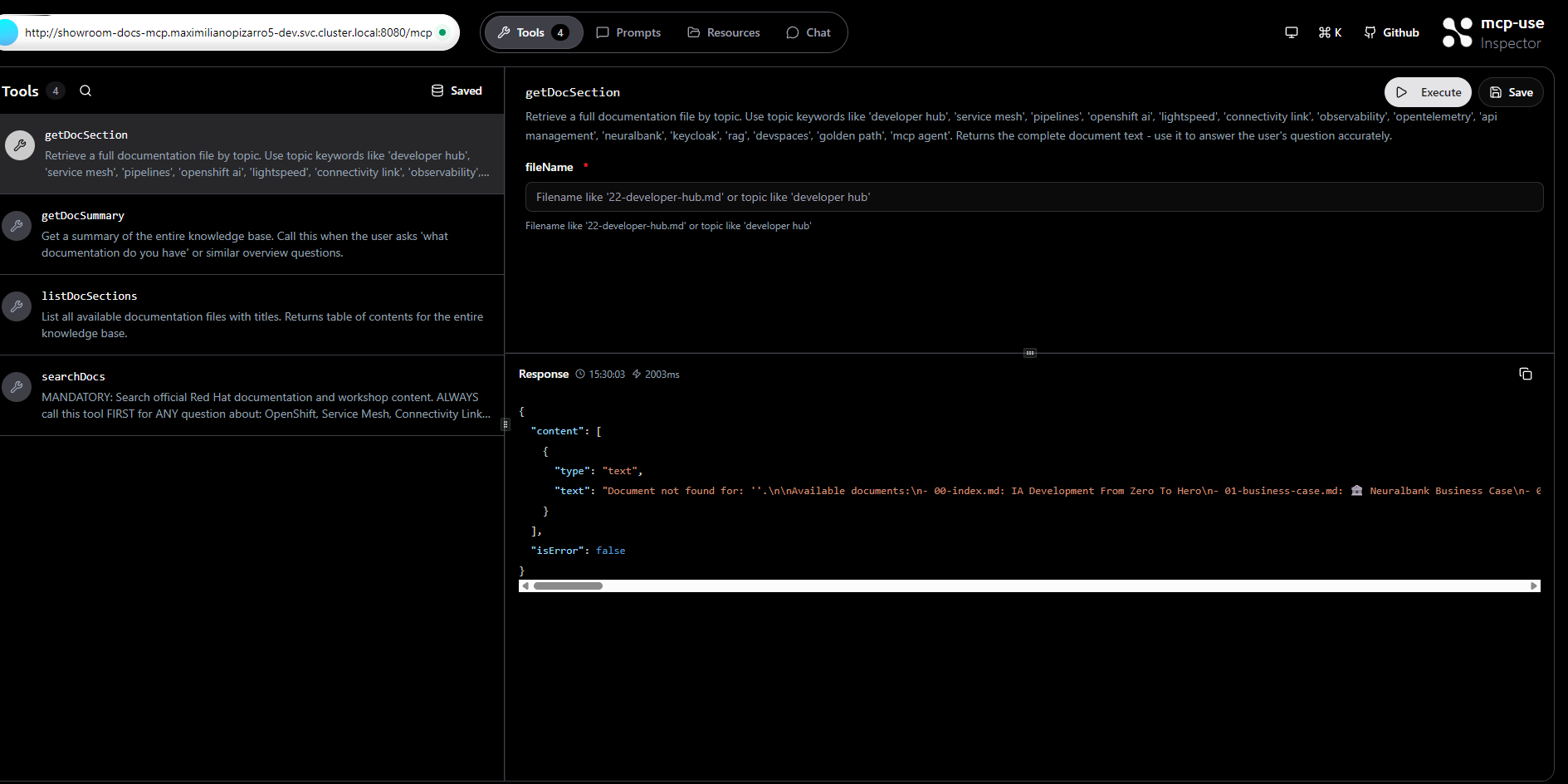
Executing the getDocSection tool from the Inspector UI, showing the tool parameters and JSON response with the documentation content.
Developer Sandbox - Step-by-Step Guide
The following screenshots demonstrate the complete manual procedure for deploying and testing the Showroom Docs MCP Server on a Red Hat Developer Sandbox with LiteLLM proxy and Qwen3 model (with native tool calling support).
Step 1: Deploy with Helm
Deploy the chart to your Developer Sandbox namespace. The Helm chart deploys three components: the MCP server, the MCP Inspector, and the LiteLLM proxy (with PostgreSQL for the dashboard).
helm repo add showroom-docs-mcp \
  https://maximilianopizarro.github.io/showroom-docs-mcp/

helm install showroom-docs-mcp showroom-docs-mcp/showroom-docs-mcp \
  --set namespace=$(oc project -q) \
  --set image.pullPolicy=Always \
  --set litellm.model.apiKey=$(oc whoami -t)
Step 2: MCP Inspector - Connected with 4 Tools
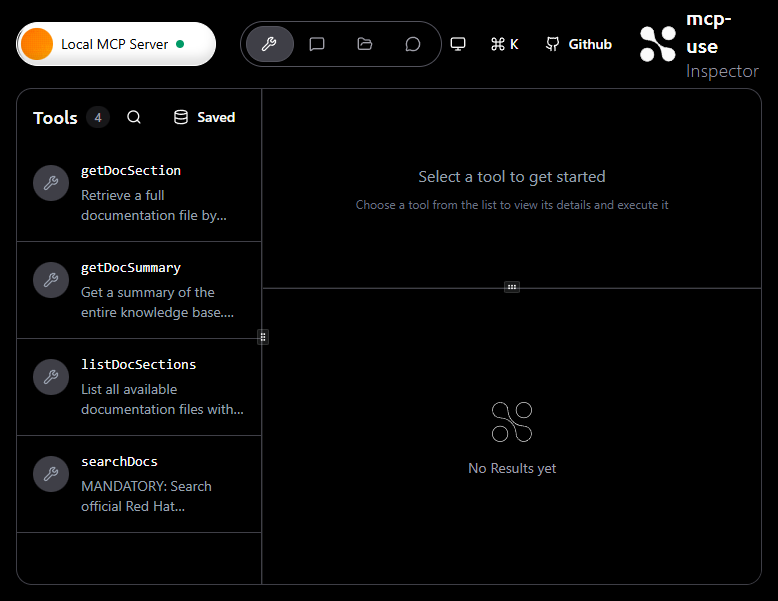
The MCP Inspector auto-connects to the MCP server via the internal Kubernetes service URL (http://showroom-docs-mcp.<namespace>.svc.cluster.local:8080/mcp). The Tools tab displays all 4 available tools: getDocSection, getDocSummary, listDocSections, and searchDocs.
Step 3: MCP Inspector - Execute a Tool
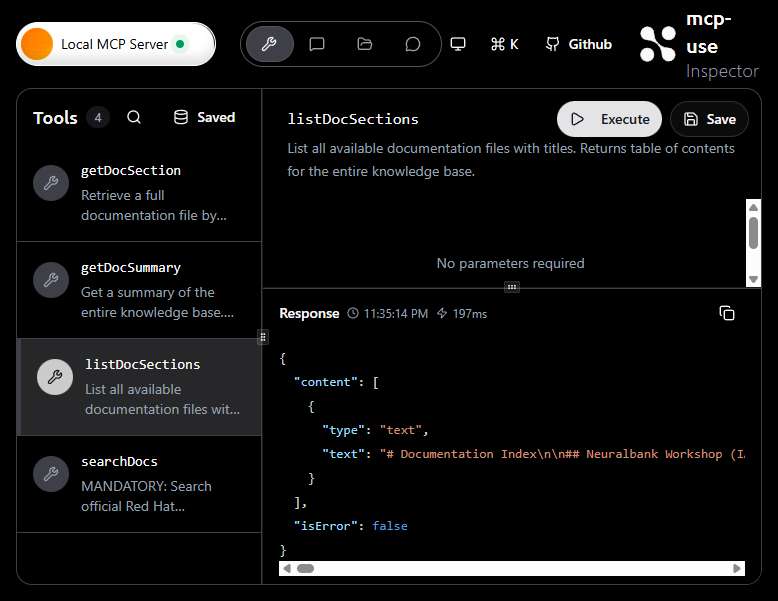
Executing the listDocSections tool from the Inspector. The result panel shows the JSON response with the full documentation index (197ms response time), confirming the MCP server is operational and returning data correctly.
Step 4: LiteLLM Dashboard - Registered MCP Server
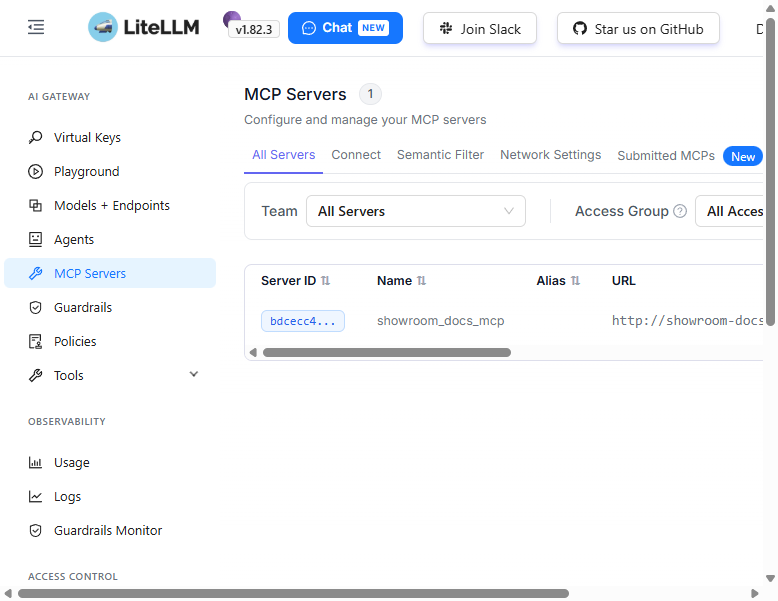
The LiteLLM Dashboard (v1.82.3) MCP Servers page shows the showroom_docs_mcp server registered and connected. The MCP server is configured via the Helm chart’s litellm-configmap.yaml with the internal service URL and HTTP transport.
Step 5: LiteLLM Dashboard - Qwen3 Model
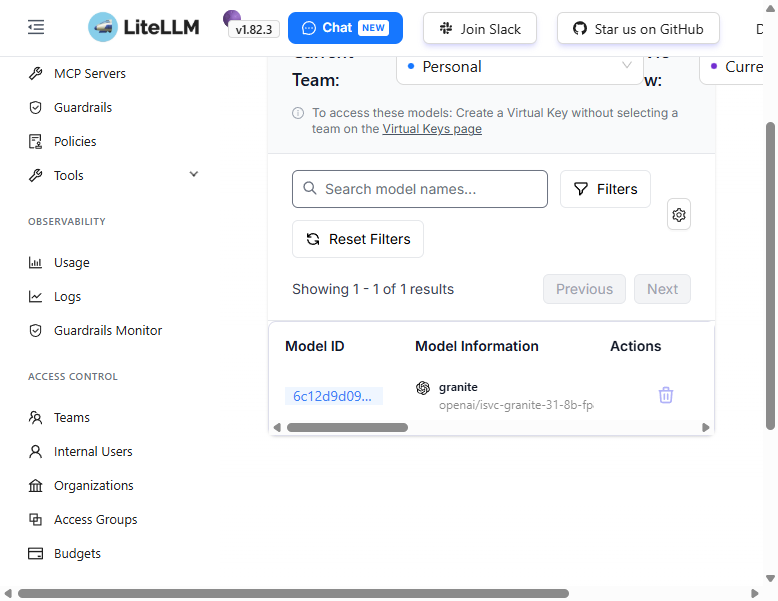
The Models + Endpoints page shows the Qwen3 model (openai/isvc-qwen3-8b-fp8) registered and available through the LiteLLM proxy. The model supports native tool calling via vLLM’s --tool-call-parser.
Step 6: LiteLLM Playground - Select Model
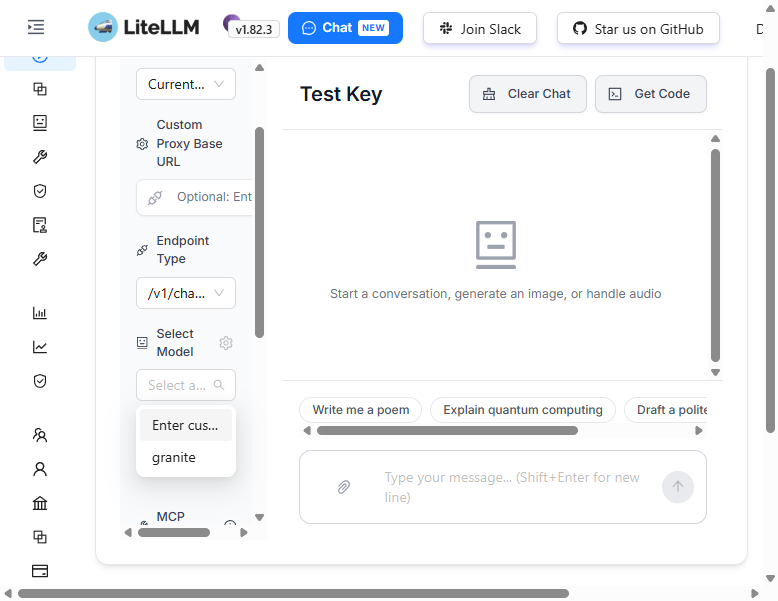
In the LiteLLM Playground, open the “Select Model” dropdown to choose the qwen3 model for chat testing.
Step 7: LiteLLM Playground - Chat with Qwen3
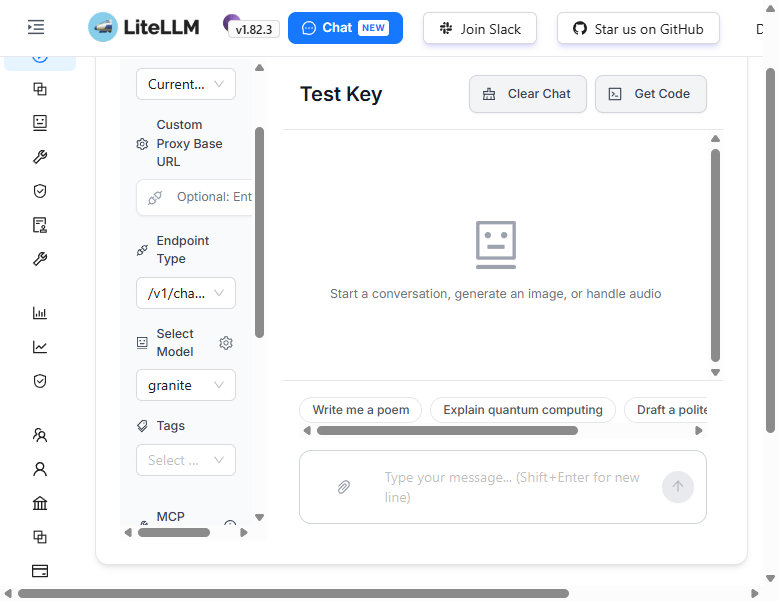
The Playground with the qwen3 model selected, ready to start a conversation. The configuration panel shows the Endpoint Type (/v1/chat/completions), the selected model, and optional fields for Tags and MCP Servers.
Step 8: LiteLLM Playground - Qwen3 Response
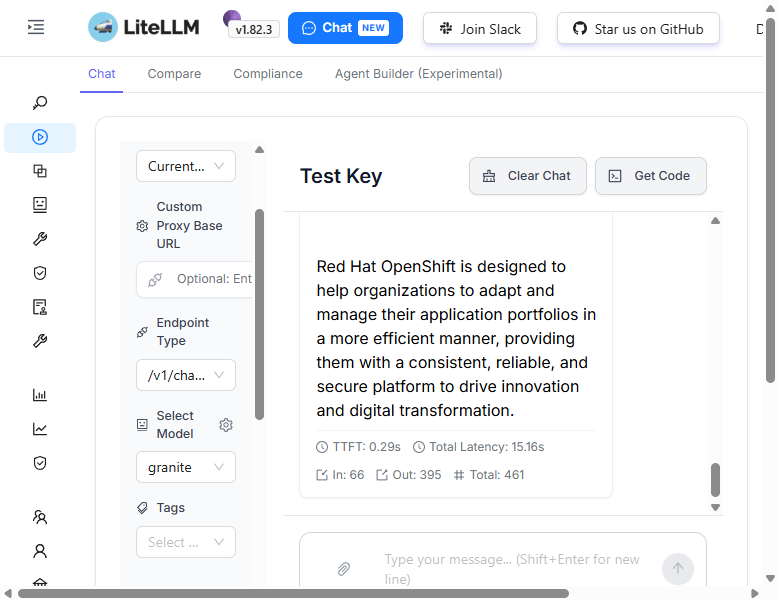
The Qwen3 model responds through the LiteLLM proxy. With native tool calling support, the model can automatically invoke MCP tools when needed.
API Testing with curl
You can also test the LiteLLM proxy directly via the OpenAI-compatible API:
LITELLM_HOST=$(oc get route showroom-docs-mcp-litellm -o jsonpath='{.spec.host}')

curl -s https://${LITELLM_HOST}/v1/chat/completions \
  -H "Authorization: Bearer sk-showroom-mcp-1234" \
  -H "Content-Type: application/json" \
  -d '{
    "model": "qwen3",
    "messages": [{"role": "user", "content": "What is OpenShift?"}]
  }'
LiteLLM Dashboard Credentials
| Field | Value |
|---|---|
| Username | admin |
| Password | sk-showroom-mcp-1234 |
Note: The API key uses an OpenShift OAuth token that expires after ~24 hours. Refresh it with:
helm upgrade showroom-docs-mcp showroom-docs-mcp/showroom-docs-mcp \
  --set namespace=$(oc project -q) \
  --set litellm.model.apiKey=$(oc whoami -t)